Every task has a chat on the right of the workspace. It's where you talk to the agent, and where its work comes back to you as plain steps and a result you can open or undo. Claude Code, Codex, Gemini CLI and Cursor's agent all run inside this chat; Styx starts the CLI you already have and talks to it for you. The Shell agent is just a terminal.
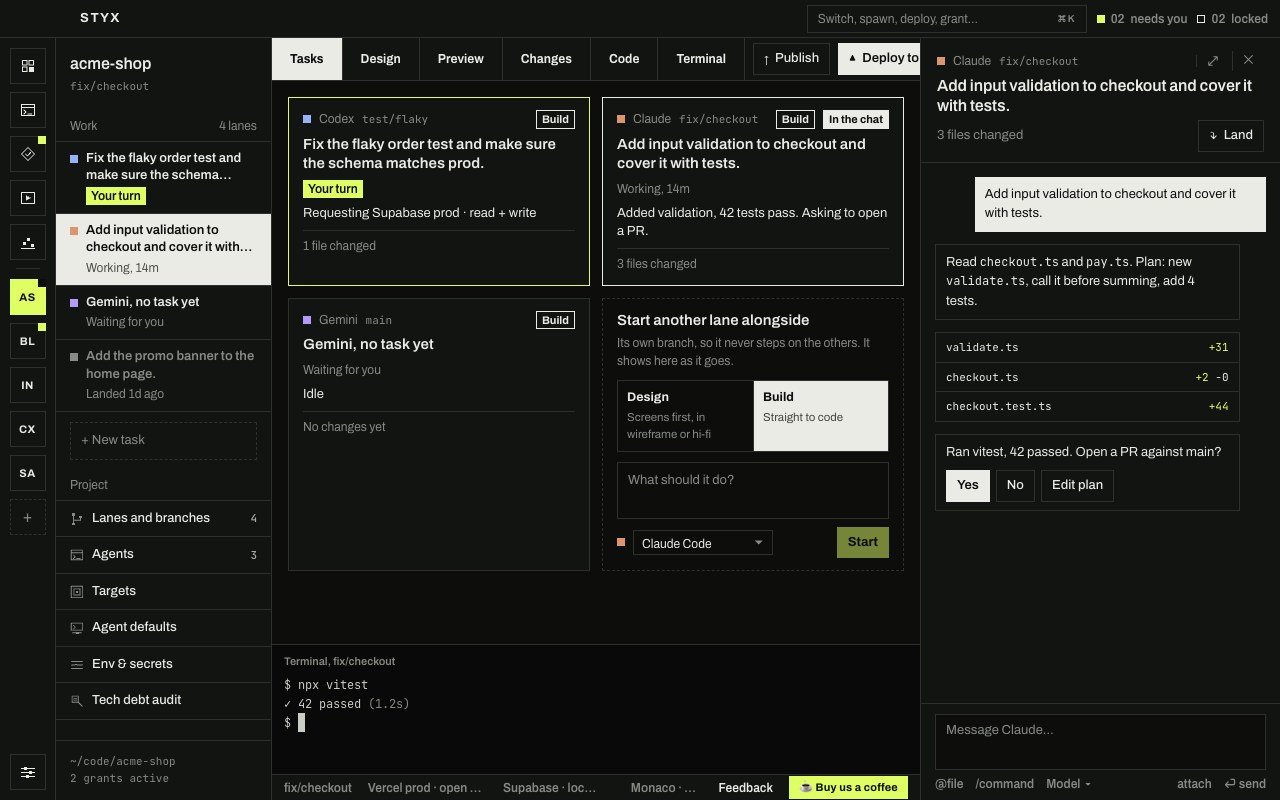
The chat
The top of the chat is the lane header: the agent, its branch, the task as its heading, what it holds so far ("3 turns kept, 7 files changed") and Land. At the top right are buttons to pop the chat out, play Snake while you wait, and close the chat.
While the agent works, its tool calls read as plain steps ("Read checkout.ts", "Ran pnpm test"). Show the tool calls reveals the raw calls. When a turn changes files, it ends with a result card: the agent's last reply, how long it took, what changed, Show changes and Undo this turn (see Changes). Older turns fold into one-line receipts; Show them opens them again. A long thread starts with Show earlier messages.
Sending messages
Type in the box at the bottom ("Message Claude…") and press Enter.
- Files with @. Type
@and pick a file from the task's worktree. A small text file goes in with the message; anything larger, or binary, is passed as a path the agent can open. - Commands with /. Type
/at the start of a message to list the commands the agent offers. For Claude Code that includes your skills and plugins. - Attachments. Paste, drop, or use attach to add any file, up to 25 MB each and 50 MB per message. Claude Code and Codex receive images directly. Everything else, and images for the other agents, is saved under
.styx/attachments/in the worktree (kept out of git, and deleted when the chat is closed or archived) and the agent is told where to find it. Files that look like keys or credentials are refused.
Messaging while the agent works
You don't have to wait for a turn to end. What happens to a message sent mid-turn depends on the agent, and the send hint under the box tells you which:
| Agent | Send hint | What happens |
|---|---|---|
| Codex | Steer | The message goes into the running turn at once, and Codex adjusts course. |
| Claude Code, Gemini CLI, Cursor's agent | Queue | The message waits under the transcript as a dashed bubble ("Sent when the agent finishes this turn.") and goes out as the next turn when this one ends. |
| Shell | — | A terminal has no turns, so nothing is held. |
A queued message has two buttons. Send now hands it to the agent straight away rather than waiting. Take back removes it and puts the text back in the box. Queued messages keep their attachments. If you stop the agent, anything still queued returns to the box so nothing is lost.
Plans, questions and approvals
When the agent needs you, it stops and the task becomes Your turn: on the nav, the board and the Home counter, with a notification if you're elsewhere (see Notifications). Answer it in the chat.
- Plans. In Plan mode the agent works read-only, then proposes a plan in the chat with Approve and Reject. Its card on the board reads "Plan ready for review".
- Questions. An agent that asks you something gets a card with its options, or several questions as one card with Send answers. You can always answer in your own words instead. A question that asks for a secret has a masked field, and the answer is kept out of the transcript.
- Permissions. When the agent wants to run something its permission mode doesn't allow, the chat shows the request with the choices the agent offers.
- Access to a target. A request for access to a deploy target or server shows as an access request with Review request and Deny. In the chat, ⌘⏎ (CtrlEnter on Windows and Linux) grants it as asked for one hour and ⌘⌫ (CtrlBackspace on Windows and Linux) denies it; production access still needs Touch ID, Windows Hello or your system password. See Approve a request.
Controls under the chat
The line under the chat holds the session's controls. Which ones appear depends on the agent.
- Permissions sets what the agent may do without asking. ⇧⇥ (ShiftTab on Windows and Linux) in the message box cycles through Ask each time, Accept edits and Plan mode.
- Model picks the model.
- Effort sets how hard the agent thinks, for agents that take it.
- Stop · esc ends the current turn. It shows while a turn is running or waiting on you, and Esc in the message box does the same while the agent is working.
- Pause holds the agent the next time it asks to use a tool, and Resume carries on. In modes where the agent rarely asks, that may not be soon.
- Mark done finishes the task. See Tasks and lanes.
New tasks take these from the project's Agent defaults (in the project nav), which you can also set per task when you start it.
Permission modes
Styx offers the same six modes for every agent and applies each one as closely as that agent allows. New tasks start in Auto. Hover a mode in the menu to see what it does for the agent you're talking to.
| Mode | Claude Code | Codex | Gemini CLI | Cursor's agent |
|---|---|---|---|---|
| Ask each time | Every tool call outside the allowlist asks you. | Edits inside the worktree run; commands that need the network or leave the worktree ask. | Every edit and command asks. | Edits and commands ask. |
| Accept edits | File edits run without asking; commands still ask. | Same as Ask each time. | Edits run without asking; commands still ask. | No edit-only mode: runs as Ask each time. |
| Plan mode | Read-only until you approve the plan. | Read-only sandbox; the plan streams as Codex forms it. | Gemini's plan mode, when enabled. | Read-only until you approve the plan. |
| Auto | Claude decides what needs your approval. | Codex's own reviewer decides what runs. | Edits run without asking; commands still ask. | No reviewer: still asks. |
| Don't ask | Anything that would ask is denied. | Anything that would ask fails back to Codex. | No such mode: nothing asks. | No such mode: still asks. |
| Bypass permissions | Nothing asks. | Nothing asks and there's no sandbox. | Every tool runs without asking. | No bypass: still asks. |
Model and effort
- Claude Code: Default model, Fable, Opus, Sonnet or Haiku. Effort (Low to Max) is set when the task starts, in New task or Agent defaults, and applies the next time the agent starts.
- Codex: the models your Codex account offers, with the effort levels each model supports. Both can change from one turn to the next.
- Gemini CLI and Cursor's agent: the models the CLI reports, when it reports a list; otherwise the model the CLI is set to. Neither takes an effort setting.
The Terminal tab
The Terminal tab in the workspace shows the task's terminal across the full width. Agents that run as terminal programs, such as the Shell agent, run here; for the others it's a plain-text log of the session. Before any agent has started in a project, it's a shell in the project folder.
Pop out a chat
Press ⌘⇧O (CtrlShiftO on Windows and Linux), or the pop-out button in the lane header, to move the chat into its own small window (400 × 500) that you can put anywhere, for instance next to your editor. The workspace shows "Popped out" in its place. Dock, or ⌘⇧O (CtrlShiftO on Windows and Linux) again, puts it back. The palette doesn't open in a pop-out window.