A schema change is where an agent is most useful and where a mistake costs the most. This guide sets up a project so an agent can read your database schema whenever it needs to, but has to ask before it writes to production. You review the migration, approve one short grant with Touch ID, Windows Hello or your system password, watch it run, and check the record afterwards.
The example uses Supabase. The same steps work for any target that reaches a database: AWS, Google Cloud, or a server over SSH.
Before you start
You need the Supabase CLI installed and signed in (supabase login) on this machine, and a project in Styx whose repo
holds your Supabase migrations. Styx reuses that login; it never asks for your Supabase password.
Connect production and staging
- Open the project's targets. In the project nav, under Project, click Targets, then + Connect target · OAuth / key / SSH.
- Connect production. Pick Supabase. Styx opens Connect with supabase, which uses the account you're
signed into in the Supabase CLI. Set Environment to
prod, give it a name you'll recognise, such as "Supabase prod", and click Connect. - Connect staging the same way, with Environment set to
staging.
Both rows now appear in the targets table with a Policy column. A new prod target starts on Ask · MFA: every request asks you, and Styx asks for Touch ID (or Windows Hello, or your system password on Linux) before it grants one. A staging target starts on Ask each time. More on the options in Connect a target.
Let the agent read the schema without asking
Out of the box, reads on staging are approved automatically, by the built-in rule Auto-approve read on any staging or preview target. Reads on prod still ask. To let the agent inspect the prod schema freely too:
- Relax the prod target. In the targets table, set the prod row's Policy to Ask each time. This doesn't weaken writes: Styx always asks, with Touch ID, for any write, deploy or delete on a prod target, whatever the policy or rules say.
- Add a rule for reads. Open Access on the rail, then Policies, and click + Rule. Set Decision
to Auto-approve, Targets to Supabase, Environments to Prod, Scopes to read only, and Grant
for to
1h. The rule text drafts itself ("Auto-approve read schema on Supabase (Prod) for 1h"). Click Add rule.
Rules are checked top to bottom and the first match decides. Each automatic approval is still written to the audit log, marked with the rule that allowed it. See Policies.
Have the agent write the migration
Start a task with ⌘⇧N (CtrlShiftN on Windows and Linux) and be explicit about the order of work, for example:
Add a status column to orders (pending, paid, shipped; default pending) as a new Supabase
migration. Check the current prod schema first. When the migration is written, stop and
tell me. Then request access to the Supabase prod target and apply it.The agent runs the Supabase CLI as it normally would. Styx sits in front of that CLI: each command is sorted into
read, write, delete or deploy, and checked against your grants before it runs. supabase db push counts as a write;
supabase db reset counts as a delete, which is asked for separately.
Review the migration before you approve
When the agent stops, its turn ends in a result card listing the files it changed. Open the Changes tab to read the new migration file and anything else the turn touched. If something is wrong, click Ask for changes and say what to fix. Nothing has reached a database yet.
Approve the write
When the agent asks for prod access, the task pauses as Your turn. The request shows inline in the chat, on the Tasks board, under Access › Requests, as a notification, and as a badge on the dock or tray icon. Answering it in any of those places answers it everywhere.
- Open the request. Click Review request. The sheet shows the target (Supabase / prod db), the agent's reason, the scopes it asked for and a duration.
- Trim if you like. You can untick a scope the agent asked for, but you can't add one it didn't.
- Pick a duration. 1h is the default. once covers a single command, which suits a one-off migration. session lasts until the task ends.
- Grant it. Click Grant 1h · Touch ID and confirm with Touch ID, Windows Hello or your system password.
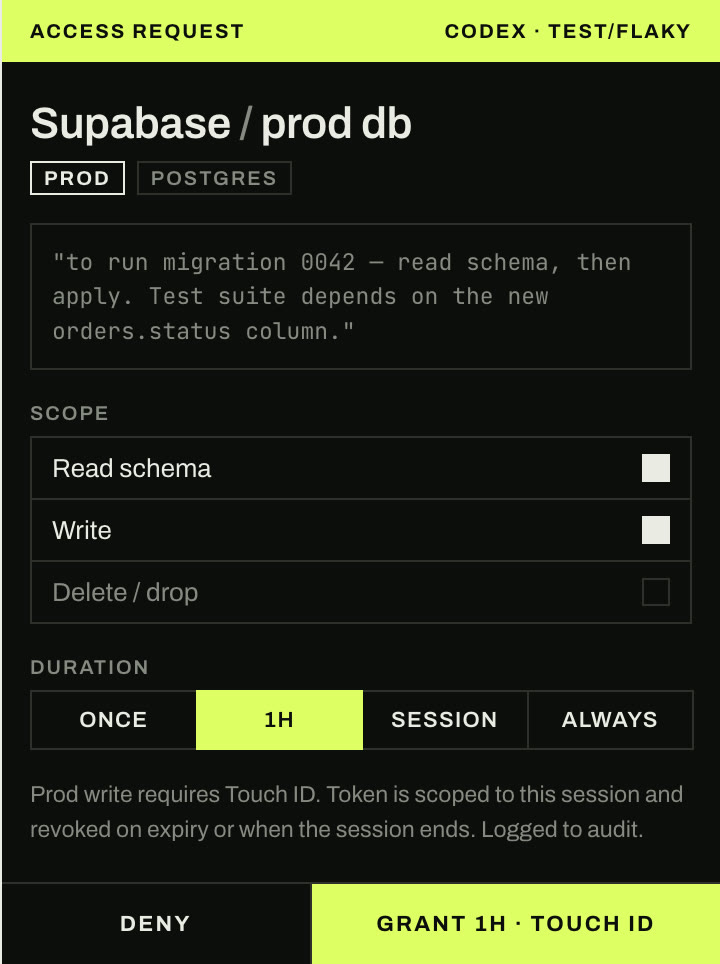
From the chat you can also approve exactly what was asked, for one hour, with ⌘⏎ (CtrlEnter on Windows and Linux). Prod writes still ask for Touch ID. The full walkthrough is in Approve a request.
Watch it run
The agent carries on as soon as you approve. The chat records the grant ("grant: Supabase prod · write · expires in …"), the status bar shows the target as open with the time left, and the agent's steps show the push running.

Check the record, then revoke
Open Access › Audit log. The migration shows up as a short trail: the request, your grant with its duration, and each use of the token with the command that used it. Click any row for the full entry: who acted, the target, scope, duration, session, worktree, what triggered it and which policy applied. Copy JSON copies it. See Audit log.
When the migration is done, close the grant rather than waiting for it to run out. Click Revoke now in the audit entry, or Revoke on the prod row in the project's targets table. Either way the grant ends at once and the revoke is logged as a new entry. Left alone, a grant ends when its time is up, after an hour without use, or when the task ends, whichever comes first.