A design task draws screens before any code is written: wireframes or high fidelity, at desktop, tablet and phone size, in your type and colours. You look at them on a canvas, point at what's wrong, and when they're right you hand them to a build task, which is told whenever the design changes afterwards.
The screens are ordinary HTML files in the task's branch, so they're reviewed, kept and landed like any other work.
Start a design task
Open the Design tab in the workspace. If the task in the chat has no design yet, the tab offers Design it before you build it: describe what to design ("a checkout with a summary and one Pay button"), pick the agent and press Start a design task (⌘⏎ (CtrlEnter on Windows and Linux)). You can also choose Design on the Start another lane alongside card at the end of the Tasks tab.
A design task is a task like any other, with its own branch and chat. Before its first turn the agent is told how to lay the screens out so Styx can show them.
The canvas
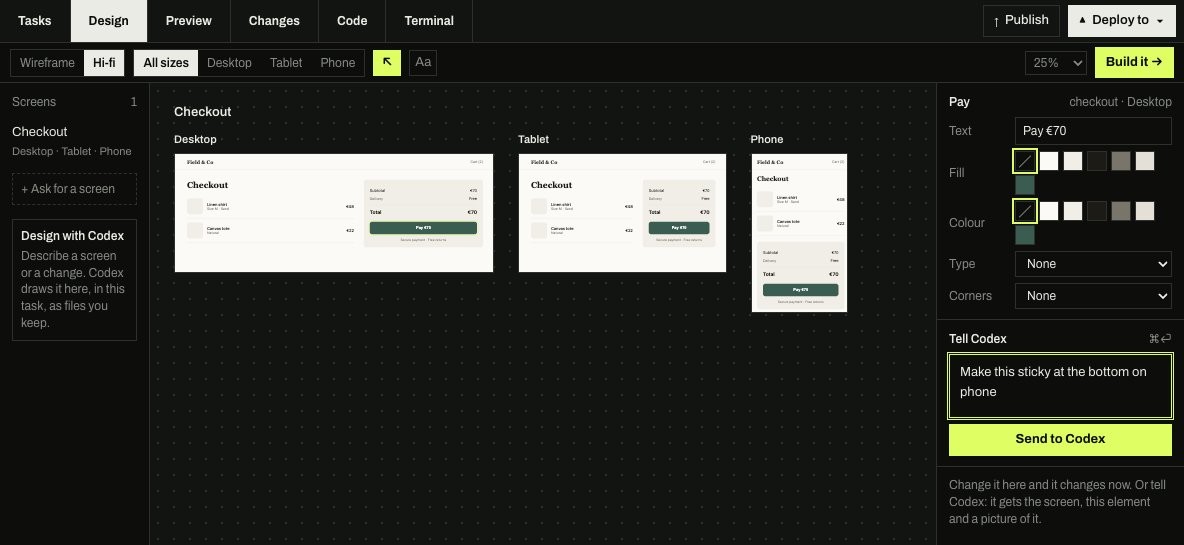
The toolbar runs along the top:
- Wireframe and Hi-fi switch between the two passes. Wireframes are greys, boxes and placeholder text; hi-fi is the real thing.
- All sizes, Desktop, Tablet and Phone choose which sizes to show. Desktop is 1280 pixels wide, tablet 834 and phone 390.
- The arrow is Select (press V).
- Aa opens Type and colour.
- A zoom menu (25 to 100 percent), and Build it at the right.
The list on the left holds the design's Screens. + Ask for a screen takes a name and asks the agent to design it. With nothing drawn yet, ask the agent in the chat for a screen, as a wireframe or high fidelity. While the Design tab is open, the project nav steps aside to give the canvas room.
Change a screen by pointing at it
Press V, or the arrow, and then either click an element or drag across an area of a screen: a section, part of one, or across several elements. Esc clears the selection.
With one element selected, the inspector on the right lets you change it by hand: its Text, Fill, Colour, Type and Corners. The change is saved to the screen's file straight away.
Or describe the change: type it in the Tell box (it carries the agent's name, as in Tell Codex) and press Send to Codex (⌘⏎ (CtrlEnter on Windows and Linux)). The agent gets the screen, the element you picked and a picture of it, and the chat shows a small chip naming what you pointed at. This works for an area too, which is often easier than describing where something is.
Type and colour
Aa opens the design's tokens: Colours, Typefaces (headings and body), the Type scale, Corners and Spacing. A change here applies to every screen at once. These are saved as the design's tokens, and the build task uses them as the app's own. If the design has none yet, Use these gives you a starting set to change, or you can ask the agent to set them.
Build it
When the screens are right, press Build it. You choose:
- New build task: a new lane branched from the design, with the agent you pick. Styx commits the design files first, so the build starts with them.
- Build here: the design task carries on and builds it itself.
You can add a note for the build ("use our Button component"), then press Start building. The build task's first message names the screens and where they are, asks it to match each size that was drawn in the app's own stack and components, and to use the design's colours, type, corners and spacing as the app's tokens.
The two tasks stay linked. Their cards on the Tasks tab name each other ("From design", "Being built by"), and the build task's Design tab shows the design's screens. When the design changes afterwards (a hand edit, a change to Type and colour, or a design turn that redraws a screen), Styx commits it in the design task's branch and tells each build task what changed and how to bring it in (a git merge of the design branch, which only touches .styx/designs). The design task's chat notes that the build task was told.
In Preview, Select to fix on the running app can send a problem back to the design task instead, when it's a design problem rather than a bug.
Designs are files
Everything lives in the task's worktree under .styx/designs/:
.styx/designs/
  tokens.json            colours, typefaces, type scale, corners, spacing
  tokens.css             written by Styx from tokens.json
  checkout/
    desktop.html         hi-fi, 1280 px
    phone.html           hi-fi, 390 px
desktop.wire.html wireframeEach screen is a single self-contained HTML file that uses the variables in tokens.css. You can open them in a browser, and any agent can read them.
A build task that has screens of its own under .styx/designs/, such as a mockup you dropped in, shows them on its Design tab too, and new files appear without a reload. Build it is hidden there, since that task already is the build.
For a worked example from first sketch to running app, see Design, then build.