A project is a folder on your computer, usually a git repository. Everything else in Styx hangs off one: its tasks and their agents, its deploy targets, its settings. You can keep as many projects open as you like and move between them without closing anything; agents in the other projects keep working.
Add a project
There are four ways in, and you can reach all of them from three places: the + at the foot of the project tiles in the left rail, the row of buttons under the project list on All projects (Home), and the command palette (⌘K (CtrlK on Windows and Linux)).
- New project starts something from nothing (see below).
- Add from recent lists folders you have opened recently in your editor, folders where Claude Code and Codex have worked, and repositories Styx finds on this machine. Projects already in Styx are left out. Tick the ones you want and press Add.
- Open folder adds a folder you pick. It doesn't have to be a git repository.
- Clone URL clones a repository (
git@…orhttps://…) into a location you choose, then adds it.
When you have no projects yet, Home shows Scan this machine, New project, Open folder and Clone URL instead.
A folder without git works: agents work in the folder itself. What you lose is isolation. With git, every task gets its own copy of the repository on its own branch, and you can review and land its work. Styx offers to install git if it's missing, and Initialise git on the project's Lanes and branches page turns a plain folder into a repository later.
New project
New project opens a short form:
- Name and Location. The location defaults to
~/code/<name>(C:\dev\<name>on Windows). - Start from, one of three:
- Empty folder: just
git initand a README. - Template: a built-in stack (Node, Python, Go, Rust or static), or a repository tagged
styx-templatein your GitHub organisation. - Agent scaffolds it: describe what you want and your default agent builds the skeleton in an empty worktree on
main, then pauses for your review before the first commit.
- Empty folder: just
- git init, on by default.
- Create GitHub repo · private, offered when a GitHub target is connected.
- Copy targets from the project you're in. This copies the target definitions only, never credentials, so each copied target shows as unconnected until you connect it.
- Open in your editor too, if Styx found one.
Press Create (⌘⏎ (CtrlEnter on Windows and Linux)). If git or the GitHub repository can't be set up, the project is still created and a notice says what didn't happen and how to fix it later.
Switch projects
Each project is a tile in the left rail, under the app's own places (All projects, All agents, Access, Tasks, Usage). Click a tile to open that project's workspace. Drag tiles to reorder them.
From the keyboard, ⌘P (CtrlP on Windows and Linux) opens the palette on its Projects group, so you can type a few letters of a name and press Enter. Inside a project, ⌘1 (Ctrl1 on Windows and Linux) to ⌘4 (Ctrl4 on Windows and Linux) jump to the first four tasks in the project's work list.
Remove a project
Right-click a project's tile and choose Remove from sidebar.
Removing a project takes it off the rail. Your files stay where they are on disk. Before the project goes, Styx stops any agents still running in it and closes every grant on its targets, so nothing keeps working or holding access in a project you can't see.
Its tasks, chat history, lanes and targets are kept, out of sight. If you add the same folder again later, the project comes back as it was: the same settings, the same threads, the same targets.
The Home screen
All projects is the first place in the rail. It greets you (by name if you've signed in to a Styx account) and sums up the day in one line, such as "2 things need you. 3 agents are working.", with New task beside it.
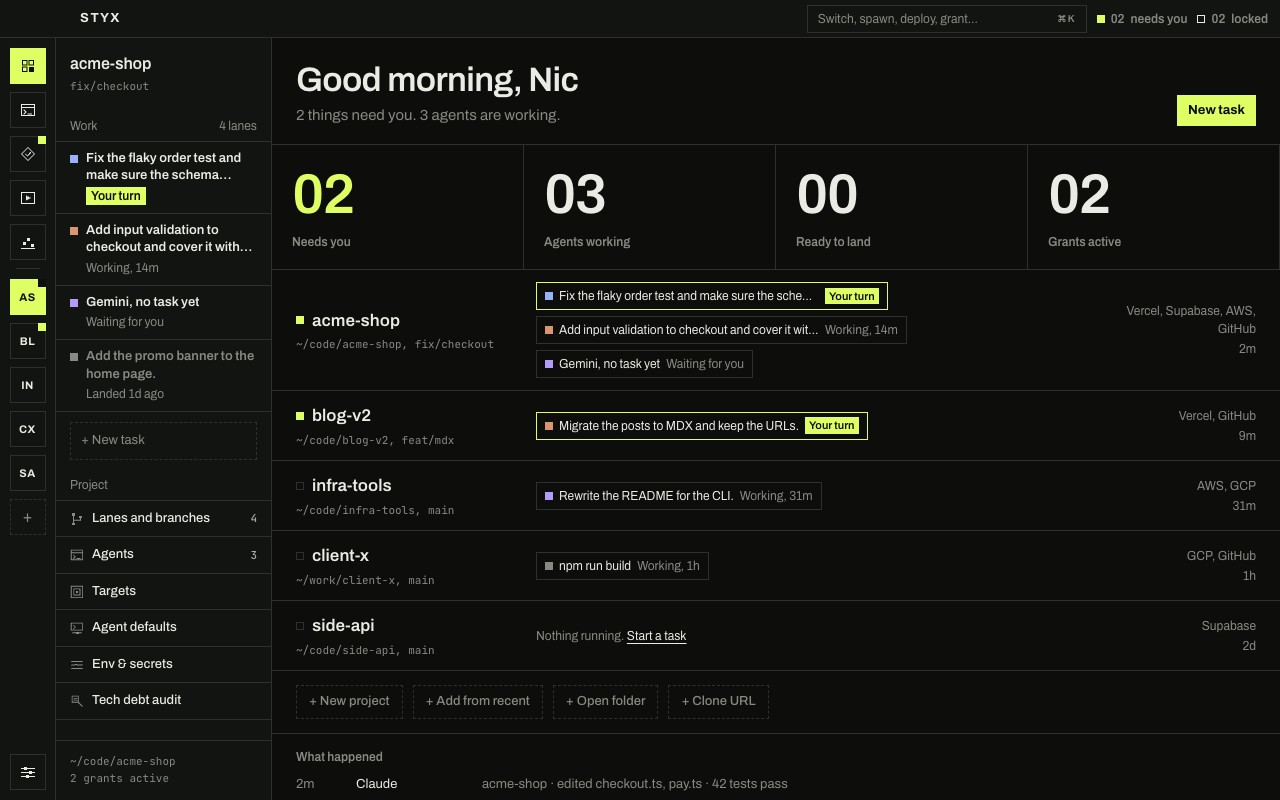
Four counters run across the top:
- Needs you: agents waiting on you right now, for an answer, a plan approval, a permission or access to a target. It turns accent-coloured when it isn't zero.
- Agents working: agents in the middle of a turn.
- Ready to land: finished tasks whose branch has changes that aren't on the base branch yet.
- Grants active: access you've granted that hasn't expired or been revoked.
Below them, each project is a row with its path and branch, its targets and when something last happened. Its running tasks sit in the row as chips, each with whose turn it is. Click a chip to open that task, or the project's name to open its workspace. A project with nothing running offers Start a task.
At the bottom, What happened is a feed of recent activity across all projects: what agents changed, what landed, what was granted.
Project settings and .styx/project.json
A project's settings live in the project nav: Targets, Agent defaults and Env & secrets. The ones that describe the project rather than your machine are written to .styx/project.json in the repository, so they travel with it and your teammates get them too:
- the default agent, model, effort and permission mode, and the toggles new tasks start with
- target definitions: name, provider, environment and access policy
- extra access policies for the project
- the base branch, branch prefix (
agent/by default) and where worktrees go - how to run the project locally: the dev command and URL Styx learned
- which env files exist and whether agents may see them
The file is meant to be committed. It never holds a secret: keys that look like secrets are rejected, and credentials stay in your operating system's keychain. If someone changes the access policies in a committed .styx/project.json, Styx doesn't apply them until you accept them on your machine. See the project.json reference for every field.