When an agent needs a target and no policy or existing grant covers it, the agent stops and waits for you. Its task turns to your turn, and the request shows up wherever you're likely to be looking. You read what it wants and why, trim it if it asked for too much, pick how long it lasts, and grant or deny.
Where requests appear
The same request appears in several places at once. Answering it in any of them answers it everywhere.
- The agent's chat: an Access request card naming the target, with the scopes it wants, Review request and Deny.
- The task: the task waits on you, with a status line such as "Requesting Supabase prod · read + write". On the All agents board, its card has Review grant and Deny.
- Access: the Requests tab lists every open request across all projects: the agent, project, target, environment, scope and the agent's reason, with Review and Deny.
- Notifications: an in-app toast ("Codex wants Supabase prod · write", for example) with Review and Later, a system notification, and a count on the Dock icon on macOS or a mark on the tray icon on Windows and Linux. See Notifications.
Review, Review request and Review grant all open the same access request sheet.
The access request sheet
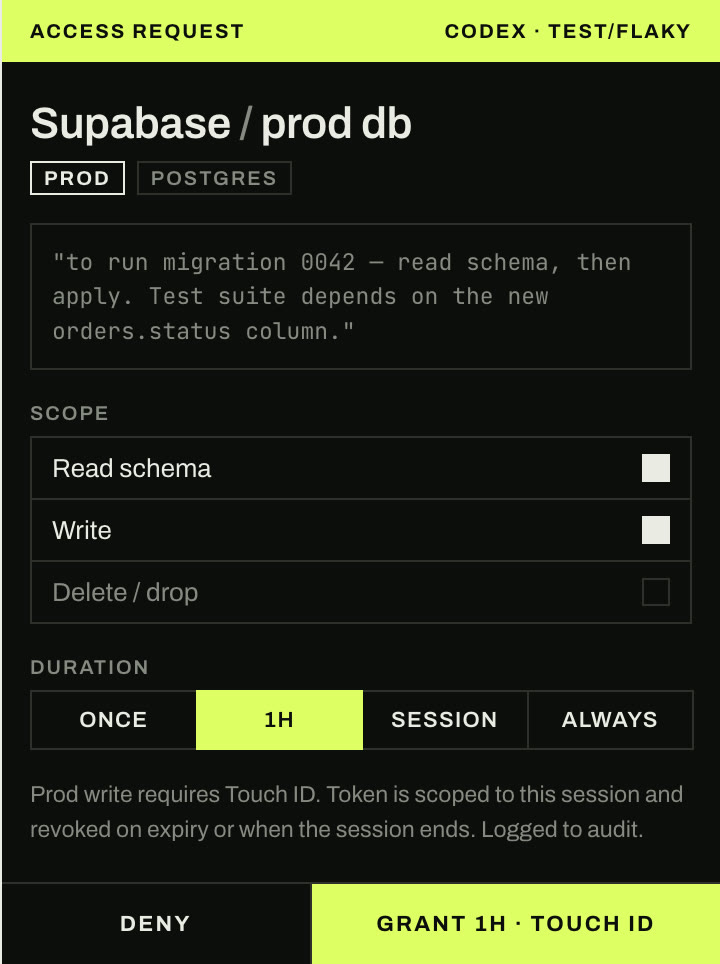
From top to bottom, the sheet shows:
- Who is asking: the agent and its branch.
- The target and environment, for example "Supabase / prod db", with a
prodtag when it's production. - The agent's reason, quoted as it wrote it.
- Scope: a checkbox for each scope this provider has. The ones the agent asked for are ticked. You can untick any of them to grant less than it asked for, but you can't grant a scope it didn't ask for.
- Duration: once, 1h (the default), session or always. How access works explains each one.
- On a
prodtarget, a note that production writes need verification and that the grant is logged.
Then Deny or Grant. The button names the duration, for example Grant 1h, and adds the verification method when the grant includes a production write, deploy or delete: Grant 1h · Touch ID on a Mac, Grant 1h · Windows Hello on Windows, Grant 1h · system password on Linux.
With the sheet open, ⌘⏎ (CtrlEnter on Windows and Linux) grants and ⌘⌫ (CtrlBackspace on Windows and Linux) denies. Without opening it, the same keys in the chat or workspace grant the waiting request exactly as asked, for 1h, or deny it.
Verifying with Touch ID, Windows Hello or your password
Styx decides whether a grant needs verification itself, from its own records. Nothing the agent says, and nothing in the app's interface, can turn it off. You're asked to verify when:
- the target is
prodand the grant includeswrite,deployordelete. This can't be disabled; - the target's policy is Ask · MFA, which is the default for production targets you connect in Styx;
- the target is
prodand its provider can't narrow the credential to the grant (Vercel, Supabase, GitHub, SSH, and some GCP and AWS setups), even for a read; - an Ask rule in your policies requires it.
So on a production target you may be asked to verify even when the button doesn't name Touch ID.
The prompt comes from the operating system: Touch ID on macOS, Windows Hello on Windows, and on Linux the desktop's polkit dialog for your own password (or fingerprint, where that's set up). If you cancel or it fails, the sheet comes back with the reason and nothing is granted. A Mac without Touch ID (no sensor, or the lid closed) shows the macOS password prompt instead. If the machine can't verify at all (Windows without Hello set up, or Linux with no graphical session or polkit agent), Styx refuses the grant rather than skipping the check.
What the agent gets
Once you grant:
- The agent's chat gets a line such as
grant: Supabase prod · write · expires in 59m(ending inpersistentfor analwaysgrant). - If the request came from a shimmed command, that command now runs, with the grant's credentials in its environment only.
- If it came from the
request_accesstool, the agent gets the grant back and carries on, usually by running the provider's CLI. - The target's state in Settings › Targets changes to open with the time left, or persistent.
Until the grant ends, the agent's later commands within the granted scopes run without asking again, and each one is recorded in the audit log as a use.
If you deny, a shimmed command fails with a message that access wasn't granted, and the request_access tool returns "denied". The agent's task carries on, and it can ask again.
When you press the button yourself
Some actions you start ask for access too: Deploy to, and Publish when it pushes. Your click is the decision, so there is no sheet. Styx grants that one action on the spot, and still asks for Touch ID, Windows Hello or your password where the rules above require it. These grants belong to the app, not to any agent, and are never shared with one.
Revoke a grant
You can end an active grant before it runs out:
- Settings › Targets: a target with a timed grant open shows Revoke on its row.
- Access › Audit log: open the entry for the grant and click Revoke now. This works for any grant you approved that's still active, including
alwaysgrants. It's unavailable for grants a policy issued; change the policy or remove the target instead. - Remove the target, which ends all its grants.
Revoking stops Styx handing out the credential straight away and closes any SSH agent socket. The agent's next command has to ask again. Remember that for Vercel, Supabase and GitHub the stored token itself stays valid at the provider. Revoking stops Styx delivering it, it doesn't cancel it upstream.
Grants also end on their own when their duration runs out, after an hour idle, or when the agent's session ends (except always grants).
Keep a task from asking at all
When you start a task, the May request targets checkbox in the new task dialog controls whether that agent may ask for targets. With it off, every request from that task is denied automatically and recorded.