A task is one piece of work you hand to an agent: "fix the flaky order test", "add input validation to checkout". Styx runs each task as a lane: one agent, working in its own copy of the repository, on its own branch. You can run several at once in the same project, and they don't trip over each other.
What a task is made of
When you start a task, Styx:
- fetches the latest base branch (
mainunless you changed it), if the repository has a remote; - creates a new branch from it, named
agent/<agent>-<n>, for exampleagent/claude-1oragent/codex-3; - checks that branch out in a separate folder (a git worktree), by default
.styx/worktrees/<repo>/<branch>next to your repository; - starts the agent in that folder with your message as its first turn.
The task's title is the first thing you asked. If you start one without a message, it reads "Claude, no task yet" until you send something.
The agent is told which branch it is on, that Styx keeps it current, and not to rebase, merge or switch branches itself. When it's done, you land the branch into main, or publish it as a pull request.
In a project without git there are no worktrees: every agent works in the project folder itself, with nothing keeping them apart.
Why every task gets its own branch
- Main stays safe. Nothing an agent does touches
mainuntil you land it. A task that goes wrong costs you a branch, not your working copy. - Agents don't collide. Two agents editing the same file in the same folder overwrite each other mid-edit. In separate worktrees each has its own copy, and differences are settled once, at merge time.
- You can read one task's work on its own. The Changes view shows exactly what this task did, turn by turn, without anyone else's edits mixed in.
- Lanes know about each other. When another lane has changed a file this one just touched, Styx tells the agent in its chat, and agents can message each other to agree who does what.
Kept current with main
A lane is cut from main, but main keeps moving while the agent works. By default Styx brings the base branch into each lane after every turn, as a merge, never a rebase. If the merge conflicts, the lane's own agent resolves it, keeping both sides. The details are in Tasks stay current.
Start a task
- New task in the project nav (or ⌘⇧N (CtrlShiftN on Windows and Linux)) opens a box that asks "What should an agent do in" your project. Type the task, pick the agent and press Start (⌘⏎ (CtrlEnter on Windows and Linux)). Under the box are the rest of the options, filled in from the project's Agent defaults: where it works, the branch, permissions, model, effort and three toggles. There are also three starter tasks if you just want to see an agent work.
- Start another lane alongside, the last card on the Tasks tab, starts a task without taking over the chat you're in. This is the quickest way to start several at once: type, Start, type the next one.
- In the palette (⌘K (CtrlK on Windows and Linux)), type a sentence of three words or more and the first result is Start "…" as a task in the current project.
Design and build tasks
Every task is either a Design task or a Build task, chosen when it starts. A build task writes code. A design task draws screens first, as wireframes or high fidelity, which you can then hand over to a build task. You choose between them on the Start another lane alongside card, or start a design task from the Design tab. Tasks started from New task are build tasks. See Design.
Where you see your tasks
The Work list
The project nav on the left lists every task in the project under Work, sorted by whose move it is:
| Status | What it means |
|---|---|
| Your turn | The agent is stopped, waiting on you: a question, a plan to approve, a permission or access to a target. Always at the top. |
| Working | In the middle of a turn. Nothing needed from you. |
| Waiting for you | It finished its turn and is waiting for your next message. |
| Paused | Held, by you or by a problem such as a missing CLI or a merge conflict. |
| Ready to land | Marked done, with changes on its branch that aren't on main yet. |
| Landed | Its work is in main. |
| Finished | Marked done with nothing to land. |
Click a task to open it in the chat.
The Tasks tab
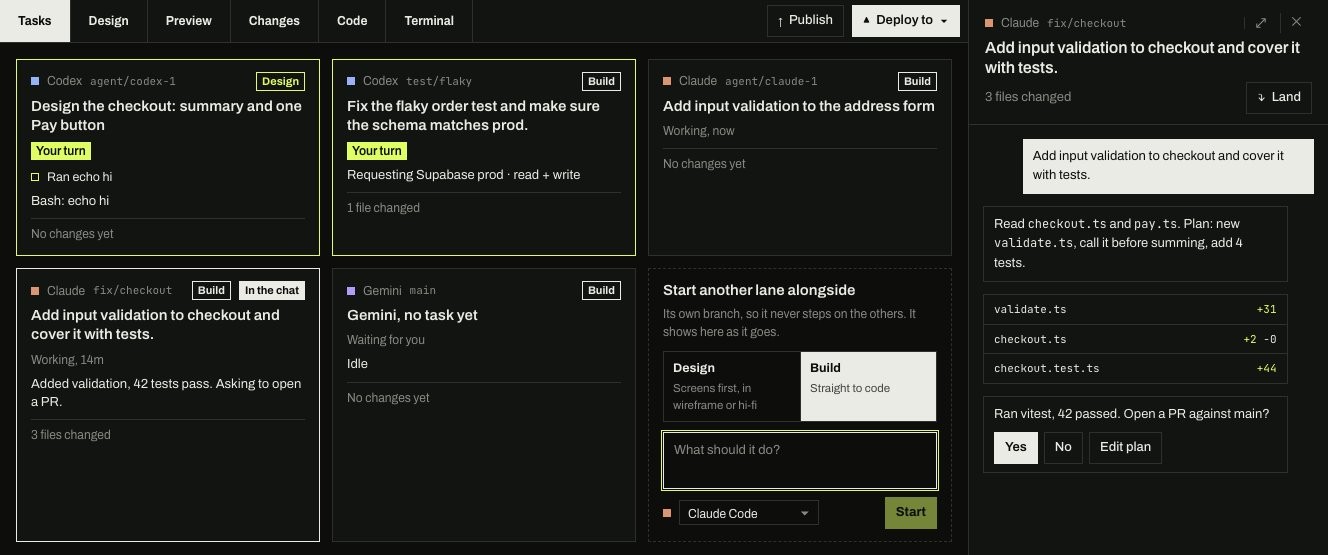
The Tasks tab, first in the workspace, shows every task in the project that hasn't landed or finished as a card: the agent and branch, Design or Build, the task, whose turn it is, its latest steps as they happen, and what it has changed so far. The task open in the chat is marked In the chat. A design task and the build task made from it name each other. Click a card to open that task in the chat.
The Agents board
All agents in the rail (or Agents in a project's nav, for that project only) is a board of every agent across your projects, in four columns:
- Your turn: agents waiting on you, with Review grant, Review plan or Review, and Deny.
- Working: agents that are working, paused or waiting for your next message, with Open and Mark done.
- Ready to land: finished tasks with changes to land. Changes opens the task on its Changes page.
- Landed: work that's on
main. Cards stay here for 7 days.
Mark done, archive and reopen
A task is never finished on its own: an agent that stops just waits for your next message. When you're happy with it, press Mark done, in the controls under the chat or on its board card. That stops the agent and moves the task to Ready to land (or Landed or Finished). Its branch and worktree stay as they are.
A finished card offers Reopen, which starts the agent again in the same lane and, where the agent supports it, continues the same conversation. Typing a message into a finished chat reopens it too.
Archive on a finished card puts it away, and finished tasks are archived on their own after 7 days. Closing a chat with the ✕ in its header stops the agent and archives the task in one step. Archived chats aren't lost: search for them in the palette and choose Reopen.