A feature often splits into parts that can be built at the same time, like the API and the screen that calls it. In Styx each part becomes its own task: one agent on its own branch, in its own copy of the repo. This guide runs two tasks side by side, shows what Styx tells each agent about the other, and lands both pieces one after the other.
The example is an order-history feature: Codex builds the /orders endpoint and Claude builds the page that lists
them. Any two agents work the same way.
Start both tasks
- Start the first task. Open the project and press ⌘⇧N (CtrlShiftN on Windows and Linux) (or New task in the project nav). Describe one part only, and say what the other agent will do: "Add a GET /orders endpoint that returns the signed-in user's orders, newest first. Another agent is building the order history page against it." Pick the agent and press Start.
- Start the second task. Open the Tasks tab and use Start another lane alongside: choose Build, type "Build the order history page using GET /orders", pick a different agent and press Start. The new task joins the board without taking over the chat.
- Watch both on the Tasks board. Each card shows the agent, its branch (
agent/codex-1,agent/claude-1), the task, whose turn it is, its latest steps and how many files it has changed. Click a card to open that task in the chat.
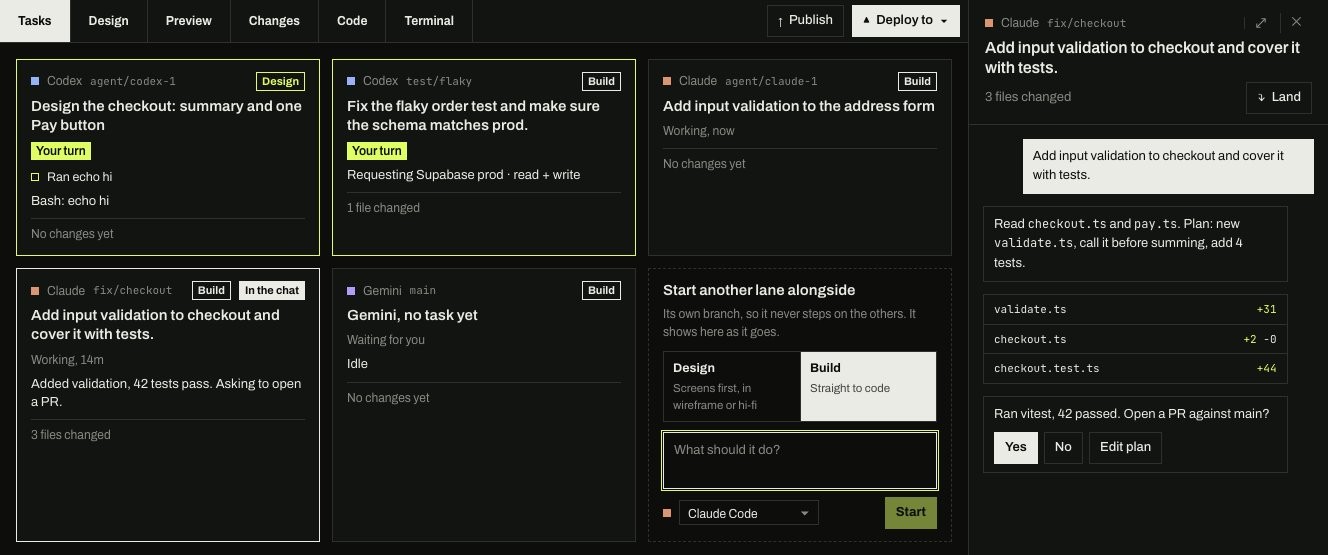
Each task works in its own worktree on its own branch, cut from main. Neither agent can overwrite the other's
files, and your own checkout is not touched while they work. See Tasks for the board and the
nav in detail.
How the two agents know about each other
Styx keeps a running record of what every live task has changed, and shares it with the agents:
- At the start. A task started while another is running is told about it: the other agent, its branch, its task and the files it has changed so far.
- On request. Every agent has two Styx tools for this.
project_activityreturns whatmaingained since the task's branch was cut, what the other tasks are doing, and every file both have changed.send_messagesends a note to the other agent; it shows up in that agent's chat as From Codex · agent/codex-1, and you can read it too. See MCP tools. - When they overlap. When one task changes a file the other has already changed, both chats get one line naming
the other task, for example: "Codex on agent/codex-1 also changed src/api/orders.ts — their task: "Add a GET /orders endpoint…". Keep to your own
files, or agree who does what with send_message." A shared file such as
package.json, a lockfile, a migration or a route table gets a firmer line asking the two to agree on one owner first.
The warning reaches the agent as well as you: if the agent is mid-turn it gets the note straight away, otherwise it gets it before its next turn. The Changes tab shows the same thing as "Also changed in agent/codex-1", and the Lanes page (Lanes and branches in the project nav) tags the row with overlaps agent/codex-1.
These are warnings, not locks. Nothing stops an agent from editing a shared file, so the most useful thing you can do is split the work clearly in the first message.
Keep each task current
By default, when an agent finishes a turn and its branch is behind main, Styx brings main in if the merge is
clean and says so in one line in the chat. So once the first task lands, the second one picks it up at its next
quiet moment and builds against the real endpoint. You can change this under Agent defaults › Bring in the
base branch (After every turn, Before publishing or Only when I ask). Whatever you pick, the Lanes
page offers Bring in main on any task that is behind.
Land them one after the other
When a task is ready (the nav says Ready to land), click Land in the header above its chat, or on its
Changes tab. Styx won't land a task whose agent is mid-turn or waiting on you. The dialog shows a
summary of the work, drafted by the agent from the changes. Edit it if you like, because it becomes the commit
message on main. Then click Land.
Landing does four things, in order, and stops if any step fails:
- Commits anything the agent left uncommitted (files that look like secrets stay out).
- Brings
maininto the task's branch. - Runs the project's checks command in the task's folder, if Styx knows one.
- Merges the branch into
mainin your project folder, then pushesmainif the project has a remote.
Land the API first, then the page. Landings in one project run one at a time, so if you click Land on both, the
second waits for the first. It then brings the freshly updated main into its branch before merging, so the page
lands on top of the API rather than racing it. See Land, publish and deploy.
When the two conflict
If bringing main into a task hits a conflict, the conflict goes back to that task's own agent:
- Styx starts the merge and hands it over. The chat says which files conflict. The agent gets both sides: what
its own task did to each file and what
mainbrought in, with instructions to keep both. - The agent resolves it in place. It does not abort or commit; Styx waits until the agent goes quiet.
- Styx checks the result. No conflict markers may be left, and the project's checks must pass. If Styx doesn't know the checks command yet, the agent works it out and teaches it to Styx. If the checks pass, Styx commits the merge and says "Brought in main …" in the chat.
- If it can't be finished, the agent gets one more try. After that the merge is undone and the task is back where it was, marked with the conflict. Click Resolve on the Lanes page to try again.
While the agent is merging, Stop merging on the Lanes page interrupts it and puts the task back. After a merge is done, Undo merge takes it out again, as long as nothing has been committed on top. If a landing started the merge, click Land again once the chat says the merge is done.
If you'd rather review every merge
Under Agent defaults › Merging, the default is Keep my project up to date for me. Switch it to I review
and merge myself and Styx stops merging on its own: a conflict waits for you to click Resolve, and Land
becomes Merge into main. Undo is the same either way: after a landing, Undo landing on the Lanes page takes
the work back out of main until main moves on.