The command palette is the quickest way around Styx. Press ⌘K (CtrlK on Windows and Linux), or click the search field in the title bar ("Switch, spawn, deploy, grant…"), type a few letters of what you want, and press Enter. Press it again, or Esc, to close it.
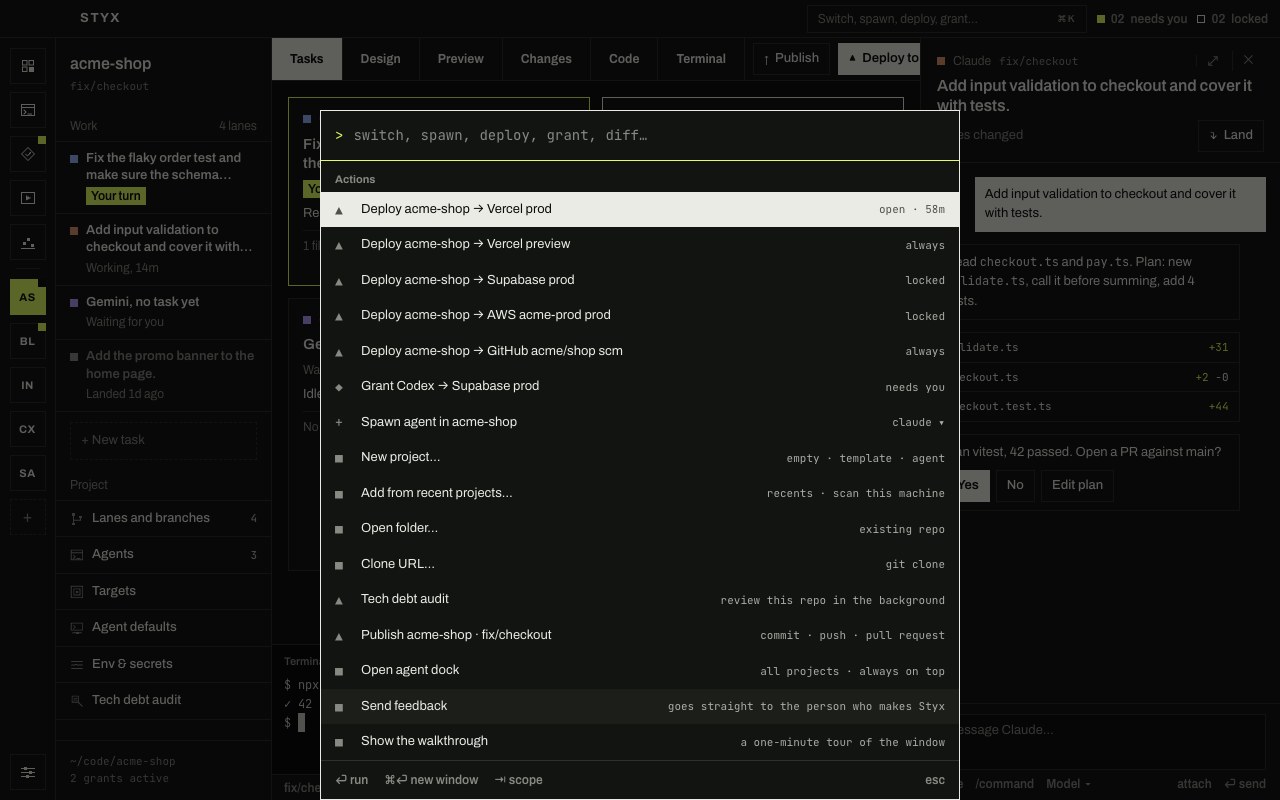
What's in it
Results come in three groups. Matching is fuzzy, on each row's label and the grey text beside it, so a few letters of a project, agent or target name are usually enough.
Actions
For the project you're in:
- Deploy project → target, one row for every target of the project. The grey text beside it says the target's state right now: open, with the time left,
always,locked,expired,unconnected, ordeploying…if a deploy is already running. The first deploy to a target Styx can't deploy to yet is handed to an agent, which works out the command (see Deploy). - Grant agent → target, for every access request waiting in this project, marked
needs you. It opens the request so you can choose the scope and duration and grant or deny it; it doesn't grant anything by itself. - Spawn agent in project opens New task for the project. The grey text names the project's default agent.
- Tech debt audit runs a review of the repository in the background and reports what would trip up a new engineer.
- Publish project · branch commits, pushes and opens a pull request for the branch of the task you're looking at.
- Play while you wait opens Snake in the chat, unless the task on screen is waiting on you.
Always there:
- New project…, Add from recent projects…, Open folder… and Clone URL…, the four ways to add a project.
- Open agent dock, the always-on-top window of agents that need you (see Notifications).
- Send feedback, straight to the person who makes Styx.
- Show the walkthrough, the one-minute tour of the window.
Agents
Every agent that hasn't finished, across all your projects, as agent · project, with its state (working, needs you, idle…). Choosing one opens its chat.
While you're typing, finished chats are listed too, including archived ones, by what they were asked: Reopen "task" · agent · project. Choosing one opens it, and an archived chat is reopened where it left off.
Projects
Switch to project for every project on the rail, with its current branch beside it. ⌘P (CtrlP on Windows and Linux) opens the palette on this group directly.
Type a task
If you type a sentence of three words or more, the first result is Start "…" as a task in the current project. Press Enter and New task opens with your words already in the box, ready to start. It's the fastest way to hand an agent something: ⌘K (CtrlK on Windows and Linux), type, Enter, Enter.
Keys
| Key | What it does |
|---|---|
| ⏎ (Enter on Windows and Linux) | Runs the highlighted row. |
| ⌘⏎ (CtrlEnter on Windows and Linux) | On an agent or an access request, opens it in a pop-out window instead. |
| ⇥ (Tab on Windows and Linux) | Narrows to one group: all, then Actions, Agents, Projects. ⇧⇥ (ShiftTab on Windows and Linux) goes back. |
| Esc | Closes the palette and returns focus to where you were. |
The palette belongs to the main window: it doesn't open in a popped-out chat.
Tips
- Deploying and granting from the palette goes through exactly the same access rules as anywhere else. A production deploy still asks for Touch ID, Windows Hello or your system password.
- The palette only offers the Deploy, Grant, Spawn, Publish and audit rows for the project you're in. Switch first (⌘P (CtrlP on Windows and Linux)), then act.
- Every shortcut is listed in Keyboard shortcuts.