The Preview tab shows your app running, next to the chat with the agent building it. You don't need to know how to start the project: the first time, an agent works that out and Styx remembers it. When something looks wrong, you point at it and say what's wrong, and the agent gets the element and a picture.
Run locally
Press Run locally in the row under the address bar.
The first time, Styx starts a background job in which the project's default agent works out how to run the project: it reads the repository (package manager, scripts, env files, the services it needs), asks you in the chat if anything is ambiguous, starts the app and checks that its local address answers. Then it tells Styx the exact command and the address, using Styx's remember_command tool. Styx saves both to .styx/project.json (as dev.command and dev.url) and starts the app. While that happens the row reads "Preparing local app…", with View progress to watch it.
From then on, Run locally runs the remembered command directly, with no agent involved. The command sits in the row, where you can edit it. The address opens in Preview, and the status bar shows dev · and the address while it runs. Stop ends it.
If the command fails or never answers on a local address, the row offers to ask the agent to fix it (for example Ask Claude Code to fix it): a new background job with the failing command and what went wrong, which ends with a corrected command remembered.
A few things to know:
- Styx runs exactly one command. If your project needs a backend and a frontend, the agent is asked for one command that starts both, and the address is the page a person opens, not the API.
- The app runs in the worktree of the task you're looking at, so you see that task's version of the code.
- Styx's own background jobs, including this one, run with Bypass permissions by default, so the agent doesn't stop to ask before each command. You can change that per project in Agent defaults (the "Styx tasks" row) or in the job's dialog.
- Agents never invent secrets. If the app needs a value that isn't there, the agent asks you for it.
Use a server you started yourself
If your dev server is already running, type its address in the field at the top of Preview (for example localhost:3000) and press Enter. Preview only shows local servers (localhost and 127.0.0.1), so nothing in a repository can point the window at a page on the internet. Reload reloads the page and Open in browser opens it in your normal browser.
A project whose dev command or address is known opens on the Preview tab.
Select to fix
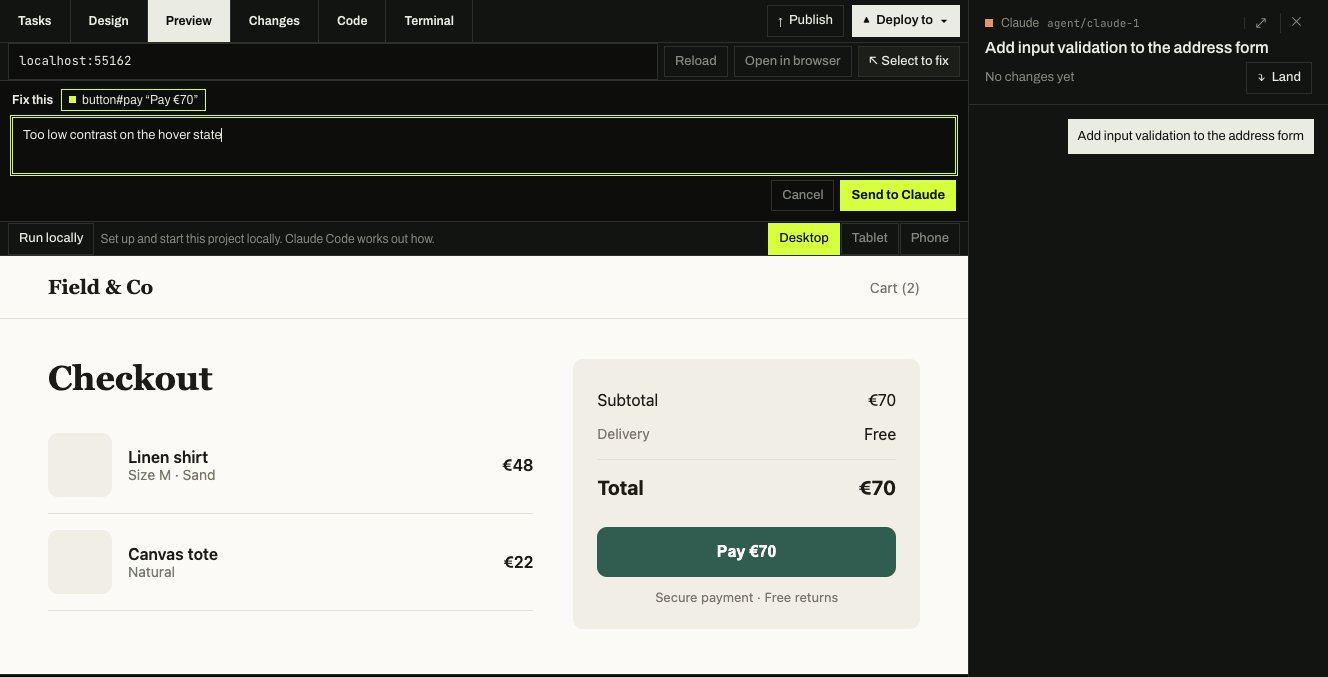
Press Select to fix, then click an element in your running app, or drag over an area. A Fix this box opens with a chip naming what you picked. Type what's wrong and press Send to and the agent's name.
The agent gets your note, the element (and the component and source file, when the page says), and a picture of it. In the chat you see your words with the chip; the detail goes to the agent only.
If the task you're looking at was built from a design, the box also offers It's a design problem: tell the design task. Tick it and the note goes to the design task instead, so the design is fixed and the build is told.
Stop selecting ends selection mode without sending anything.
Desktop, tablet and phone
Desktop, Tablet and Phone at the right of the row change the size the page is shown at. Desktop fills the pane. Tablet and Phone draw the page inside a device frame at that width, so you can check a responsive layout without leaving Styx, and Rotate turns the frame on its side.
Simulators and emulators
If Styx detects a mobile app (Expo, React Native, Flutter, an Xcode or a Gradle project), the run row gains a choice of Web, iOS and Android, and a device picker. For a device platform, the agent that works out how to run the project builds and launches the app on a simulator or emulator instead of a web page, and remembers the device and the app's identifier as well as the command.
While the app runs, Preview shows the device's screen.
- iOS needs a Mac with Xcode and its simulator runtime installed. To mirror the simulator live, macOS asks once for Screen Recording permission; until then Preview falls back to screenshots. Tapping and typing in Preview needs
idb(brew install idb-companion); without it, Open the simulator brings the simulator itself forward. - Android needs the Android SDK tools (
adbandemulator) on your PATH, for instance from Android Studio. Taps, swipes and typing are passed to the emulator.
If the tools aren't installed, the row says so and how to get them.
Screenshots of every turn
While your app is running in Preview, Styx takes a picture of it before and after each agent turn. They show on the turn's result in the chat, so you can see what a change did to the app as well as to the code.